
One link to bring a group together.
Share a link or a QR code. Admins decide who gets in. And every child still needs their own parent’s approval.
Share a group the way you already share everything else
Every group chat in ChatMinder can have its own invite link and QR code. Send the link in a message, put it in a newsletter, or show the QR code on your screen and let people scan it with their phone camera.
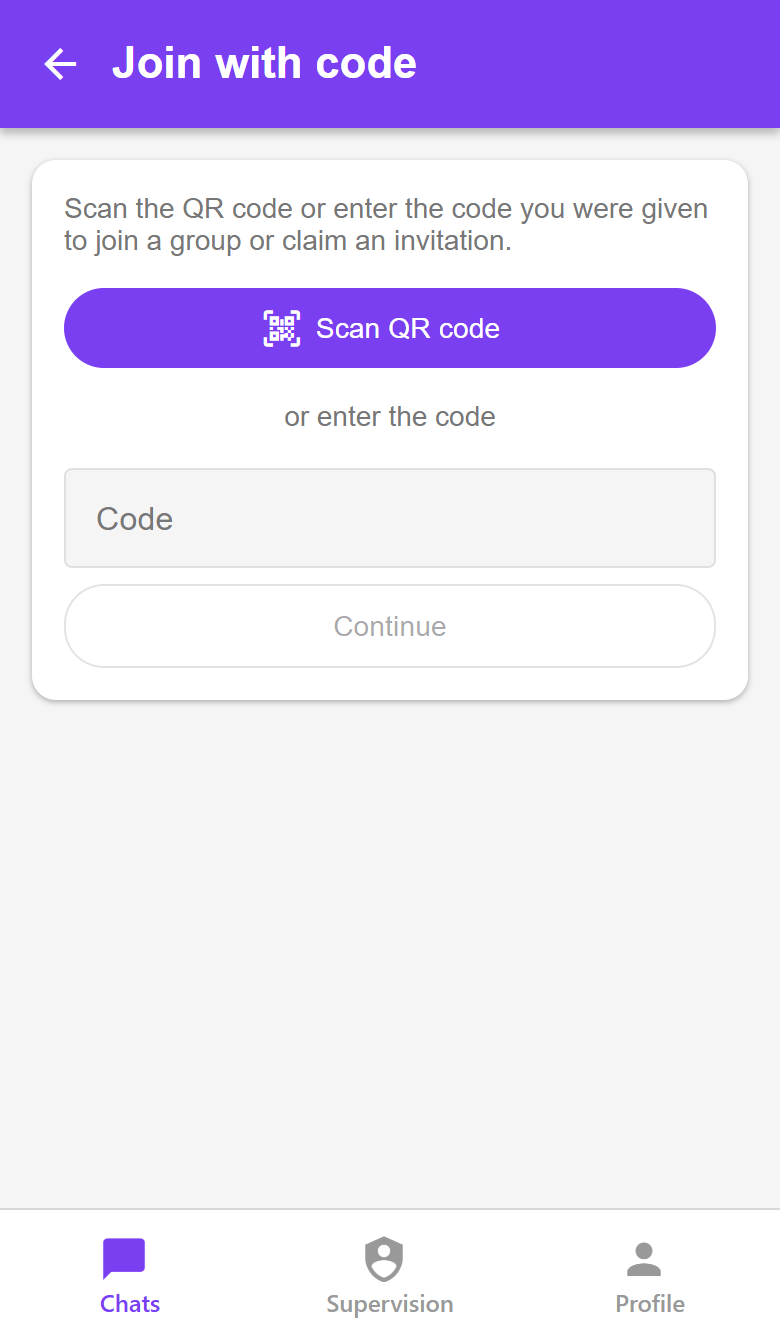
Anyone who already has ChatMinder joins in a tap. Anyone new creates a free account from the same link and is added to the group when they sign up. You can also use Join with Code in the app to scan a QR code or type a code in.


How it works
1. Turn on joining by link
New groups start with joining by link switched off, so nothing is open until an admin decides. One switch turns it on.
2. Share the link or QR code
Admins can always share it. An admin can also let moderators, members, or both share it too.
3. People join
They tap the link, scan the QR code, or choose Join with Code in the app and scan or type the code. If approval is on, an admin reviews each request first.
You decide who gets in
Turn on Require approval and each person who asks to join waits for an admin. Admins can also let moderators approve, which is useful in a bigger group.
Approvers see a count on the group in their chat list, tap it, and approve or decline each request. The person asking sees that their request is waiting and can cancel it at any time.
Everyone who joins starts as a member. Admins and moderators keep the same controls they have today.


A link you control
The link is a random code, not something anyone can guess. It never changes unless an admin chooses Reset code.
- Reset code stops the old link and QR code working straight away. Requests already waiting stay in the queue.
- Changing a setting never changes the code, so turning joining off and on again will not break a link you have already shared.
- Turn joining off whenever you like, for example once a team is full.
Someone who opens the link sees only the group’s name and description. They cannot see who is in the group or read anything in it until they have joined.
Children stay protected
This is the part that matters most. A group link never skips a guardian’s approval. For a child with a ChatMinder protected profile, the order is always the same:
- The group approves the request (if the group needs approval).
- The child’s guardian approves, according to the child’s settings.
- The child joins.

What a guardian sees depends on how much freedom they have given the child:
| Contacts Protection level | What happens when the child follows a group link |
|---|---|
| Guardian Managed | The child cannot join a group by themselves. A guardian joins them by scanning the group’s QR code or entering its code from the child’s profile. |
| Approval Required | After the group approves, the request goes to the guardian. Once they approve, the child can accept and join. |
| No Approval Required | The child joins as soon as the group approves. |
Guardians stay informed along the way:
- When your child follows a link themselves, the request reaches you for approval in the same place as every other approval. Your child sees that it is waiting for your approval and can cancel it.
- When you join your child to a group, you see the request waiting on your child’s chat list, can cancel it, and are notified when the group approves or declines it.
Adding a child yourself
If someone gives you a group’s QR code or code, go to your child’s profile, choose New chat, then Join with Code. Scan the code or type it in. The group’s approval still applies, and the usual guardian rules for your child still apply.


Names stay private
Inside a group, a protected user appears to people who are not their contact or guardian as an initial rather than a full name.
The one exception is the person approving join requests: an admin or moderator reviewing a request sees the full name of whoever is asking, so they know who they are letting in.
Frequently asked questions
Can anyone with the link join straight away?
Only if the admin turns off approval. New groups start with approval on, and joining by link off.
Who can share the link?
Admins always can. An admin can also allow moderators, members, or both. A supervised child can only share a link if the group allows members to, and their guardian has allowed them to add people to groups without approval.
What if the link ends up somewhere it should not?
Tap Reset code in the group’s invite screen. The old link and QR code stop working immediately and a new one is created.
Does a link let a stranger read the group?
No. The link shows only the group’s name and description. People see messages only after they have joined, and with approval on, only after an admin has said yes.
Does joining a group bypass my child’s protection settings?
No. A child still needs their guardian’s approval according to their Contacts Protection level, after any approval the group asks for. A Guardian Managed child cannot join by link at all.
I do not have ChatMinder yet. What happens when I tap a link?
You can create a free account from the link and are added to the group when you finish signing up. On a phone browser there is also an Open in the ChatMinder app button if you already have the app.
Can I join with the code instead of the link?
Yes. In the app choose New chat, then Join with Code, and scan the QR code or type the code.
Ready to get started?
It takes minutes to set up. No phone number or email required for your child.