
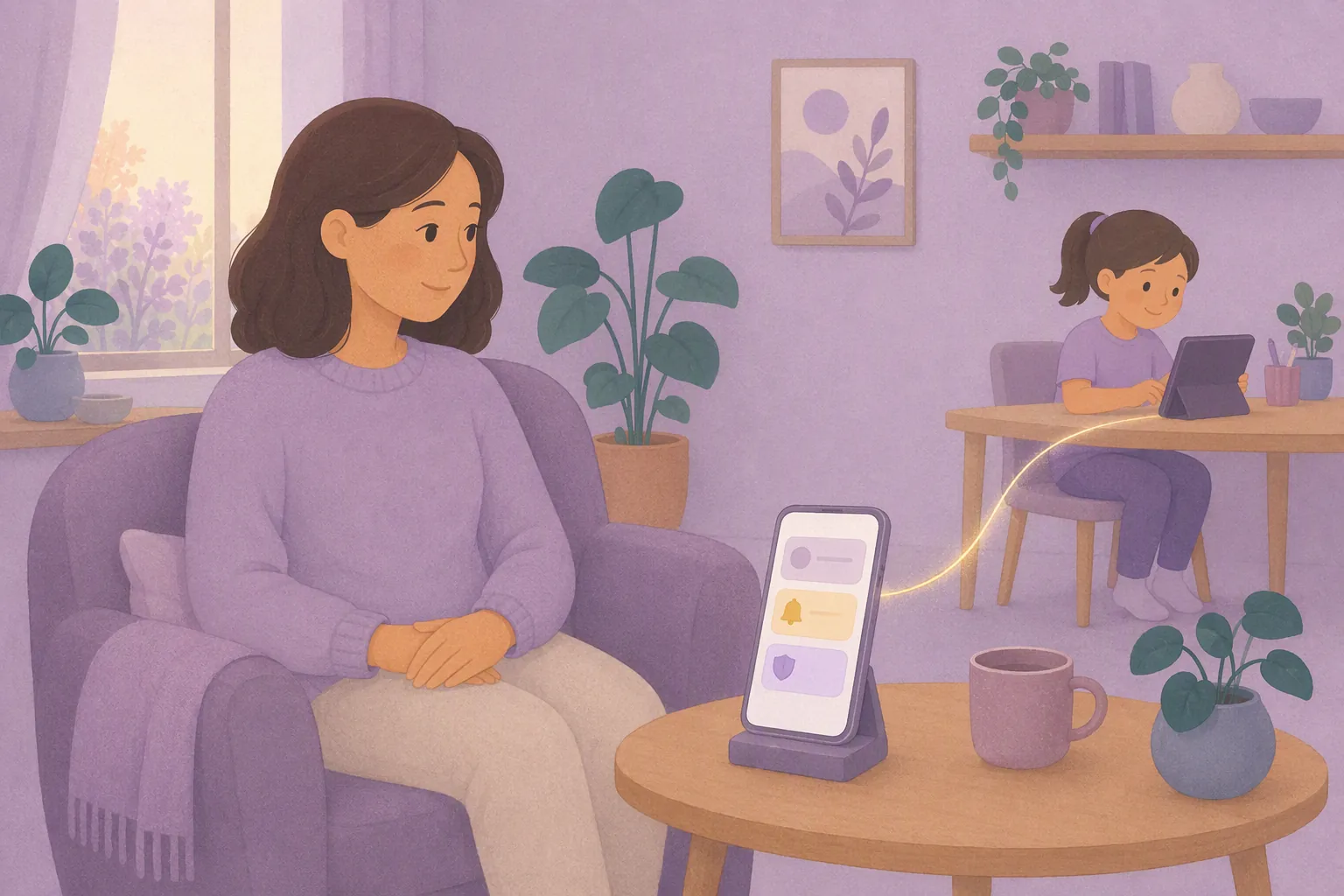
One look now tells you whether everything is fine. If something needs you, it says so, and takes you straight to the fix.
Most parents do not want to spend their evenings reading every message their child sends. They want to know three things: is everything fine, is anything waiting for me, and are the right protections switched on?
We have redesigned the Supervision screen in ChatMinder to answer those three questions at a glance, and to make the things you do most often a single tap away.
👋 Start with what needs you
Open Supervision and you are greeted by name, with a simple line that says how many people you are looking after.
Straight underneath is a card called Needs your attention. It only appears when something needs you, and it lists each thing on its own line, with its own button:
- Waiting for your approval: messages and requests from your children that need a decision. Tap Review.
- A device is not receiving notifications: a child’s phone is not set up to alert them, or you. When one child is affected, tap Fix to go straight to their device settings.
If there is nothing to do, the card is not there. Quiet means fine.

📊 A card for each child, with the last seven days
Below that is a card for every protected user. Each shows how their last seven days have gone: how many messages they sent, how many they received, and how many needed a review.
If you have turned on Smart Approval, the card also shows how many messages were scanned, flagged and blocked.
At the bottom of every card are the buttons you reach for most:
- View chats to see their conversations (a Premium feature).
- Chat, Voice and Video to get in touch with them.
If something is waiting for your approval, or their device has a problem, the card says so in plain words, right under their name.
🧭 One profile for everything about a child
Tap a card and you reach that child’s profile. It is now one calm page, in a sensible order, rather than a list of settings to hunt through.

Finish setting up, one step at a time
New protected users get a short checklist, so nothing important is forgotten:
- Choose who can contact them
- Set message protection
- Set calling permissions
- Review safety features
- Sign in on their device
- Add another guardian
It shows how far you have got, and it sits at the top of the profile until you are done. If a child’s device has still not been signed in a few days after you created them, we will remind you.
Activity and usage
The Activity card lets you switch between Today, 7 days, 30 days and All time. With Smart Approval on, it also shows how many messages were checked, how many were safe, and how many were flagged, split by severity.
The Usage card shows the last week at a glance: a small chart of messages sent each day, plus voice calls, video calls and media shared.

Protection settings at a glance
The Protection card shows the current setting for Contacts, Messages, Calls and Features, so you can see how things stand without opening anything. Tap any row to change it.

Below it, People & sharing takes you to guardians, contacts, sharing and the weekly safety report.
🔔 Notification problems, fixed in a tap
A protection tool only works if you hear about things. If a child’s device cannot show notifications, ChatMinder now tells you clearly: on the Supervision home, on their card, as a badge and a banner in their profile, and in the Device card.

Tap Fix notifications and you are taken to the right place to put it right. The same card lets you sign a child in on another device by scanning a QR code or entering a pairing code.
Why we did it
Protection should not be a second job. Every part of the new screen is there to cut the time between wondering and knowing: what is waiting, how are they getting on, what is switched on, and what is broken.
Your children’s messages are still approved the way you set them up, and nothing about how ChatMinder protects them has changed. We have made it quicker to see, and quicker to act.
Try it
Update ChatMinder, or restart it if you see an Update downloaded message, then open the Supervision tab.
New to ChatMinder? Get started for free →
To read more, visit The Supervision Dashboard →
Related reading:

Leave a Reply